How to clean up scanned comic pages
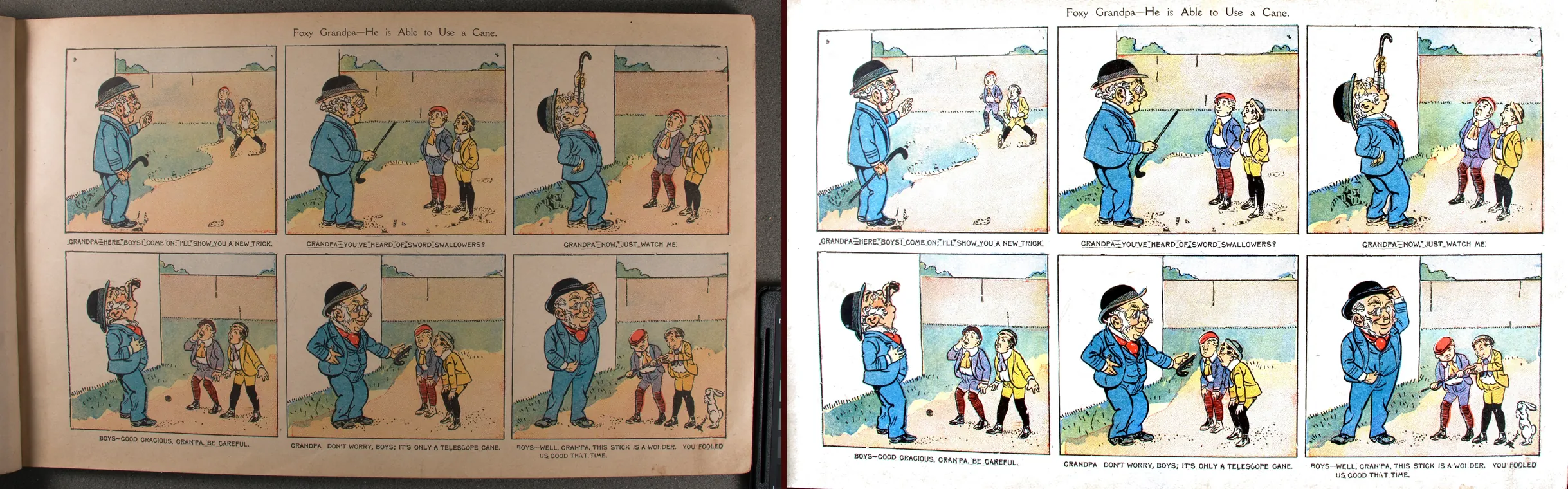
Cleaning up a scanned comic means the same four fixes on every page: straighten it, crop off the scanner lid, whiten the yellowed paper and remove the dust. This tutorial does it step by step with Comic Scan Cleaner on two real public-domain comics, and you can download the scans and the cleaned files to compare them yourself.
- What you need
- Step 1: Open Comic Scan Cleaner
- Step 2: Add your scans
- Step 3: Check the settings
- Step 4: Preview one page
- Step 5: Choose the output and the comic's details
- Step 6: Clean all pages and save the CBZ
- Step 7: Check the result in a reader
- Example 1: Foxy Grandpa Flip Flaps (1905)
- Example 2: Bringing Up Father (1919)
- When a page needs something else
- Frequently asked questions
What you need
- Your scans: one image per page, as JPEG, PNG or WebP, named in reading order (
001.jpg,002.jpg…). Raw scans are best: with a little of the scanner lid showing around each page, the cleaner can find the page's edges. - Comic Scan Cleaner: one HTML file that runs in your browser and works offline, on Windows, Mac or Linux. See what it does and get it.
- A computer with Chrome, Edge, Firefox or Safari.
Scans in a PDF or TIFF? Browsers can't open TIFF, so save TIFF scans as PNG first. If your scans are inside a PDF, take the images out first, for example with pdfimages (free, from Poppler) or your PDF editor's export.
Step 1: Open Comic Scan Cleaner
Unzip the download and double-click Comic Scan Cleaner.html. It opens in your browser and works without an internet connection: your scans are never uploaded.
Step 2: Add your scans
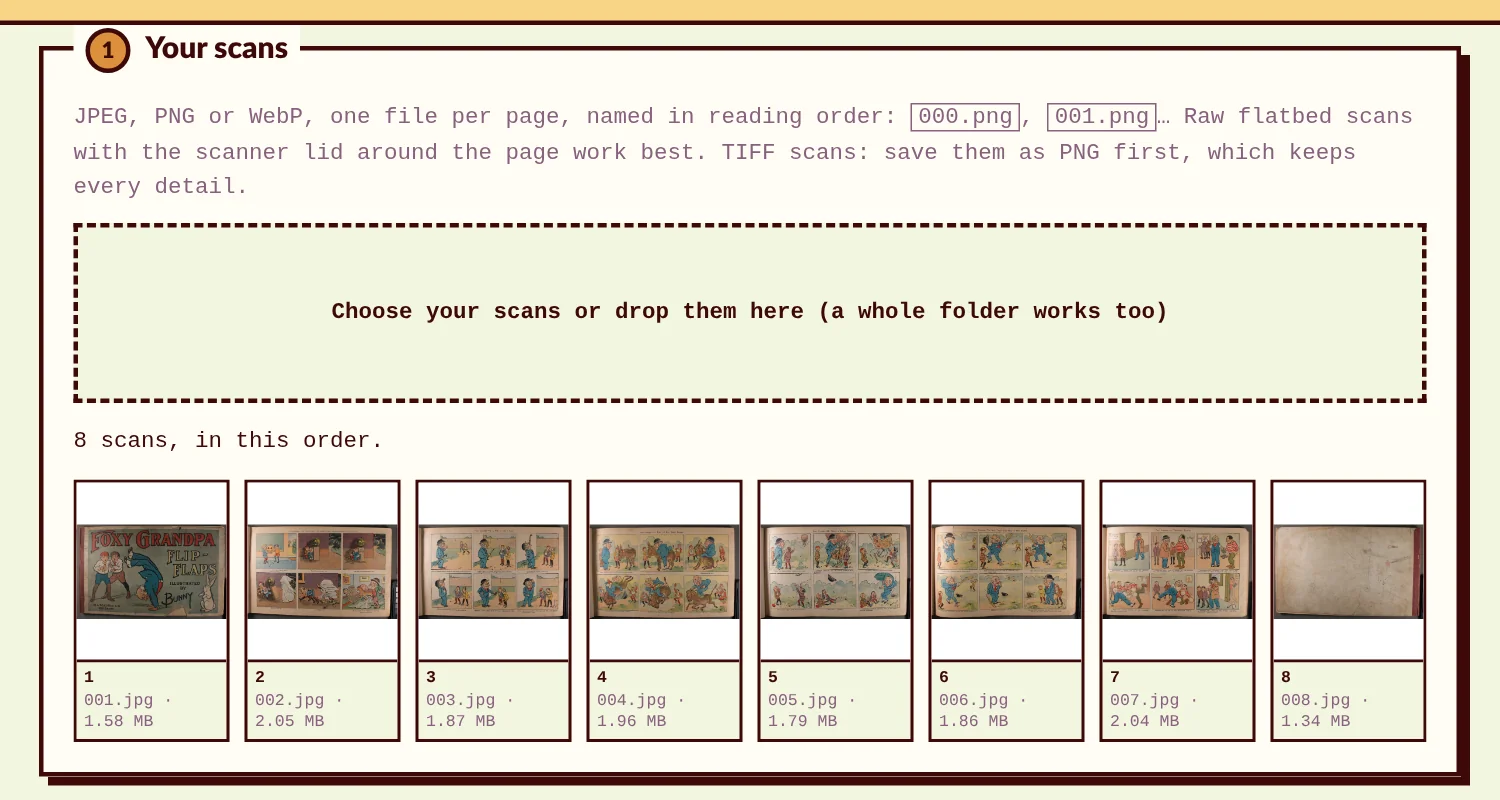
Click Choose your scans, or drag the files or the whole folder onto the page. The cleaner lists them in reading order, by name. Here are the 8 pages of the first example, photos of a 1905 comic book lying open on a table.
Step 3: Check the settings
The default settings suit most comics, so you can usually leave them as they are:
- Straighten pages lines up the panel borders and lettering, up to 5°.
- Crop to the page cuts away the scanner lid or the table around the page. Scans that are already cropped are left alone.
- Remove dust specks takes off small dark dots alone on the paper, and keeps lettering, hatching and printed dots.
- Trim the edges takes a little off every edge after cropping, for torn or dark page edges.
- Paper turns yellowed paper white and the ink black. Choose Even aged tone to keep an old-paper look, or Leave as scanned for no color changes.
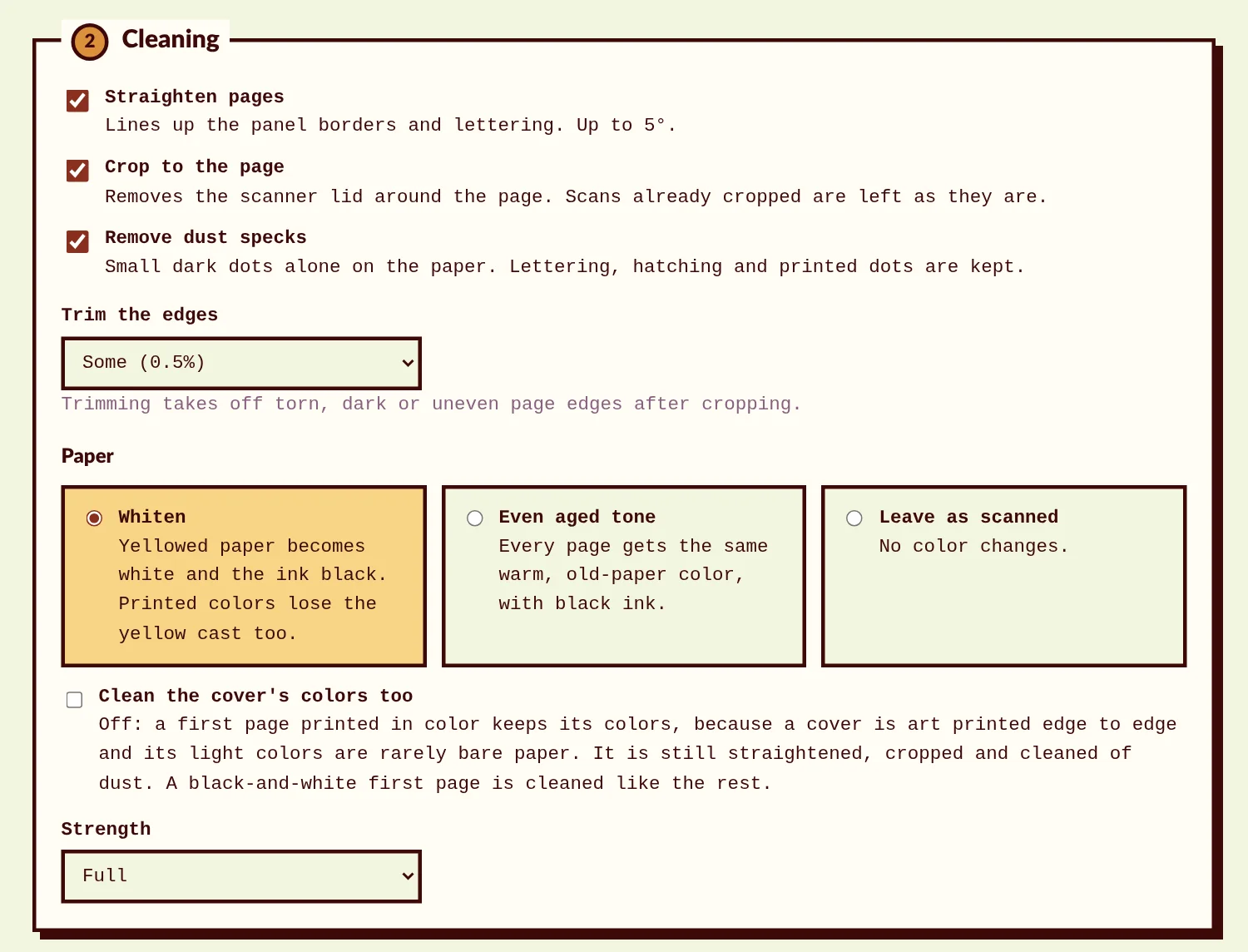
The first page is taken as the cover. If it is printed in color, it keeps its colors, because the light colors of a cover are rarely bare paper. Tick Clean the cover's colors too to clean it like the other pages.
Step 4: Preview one page
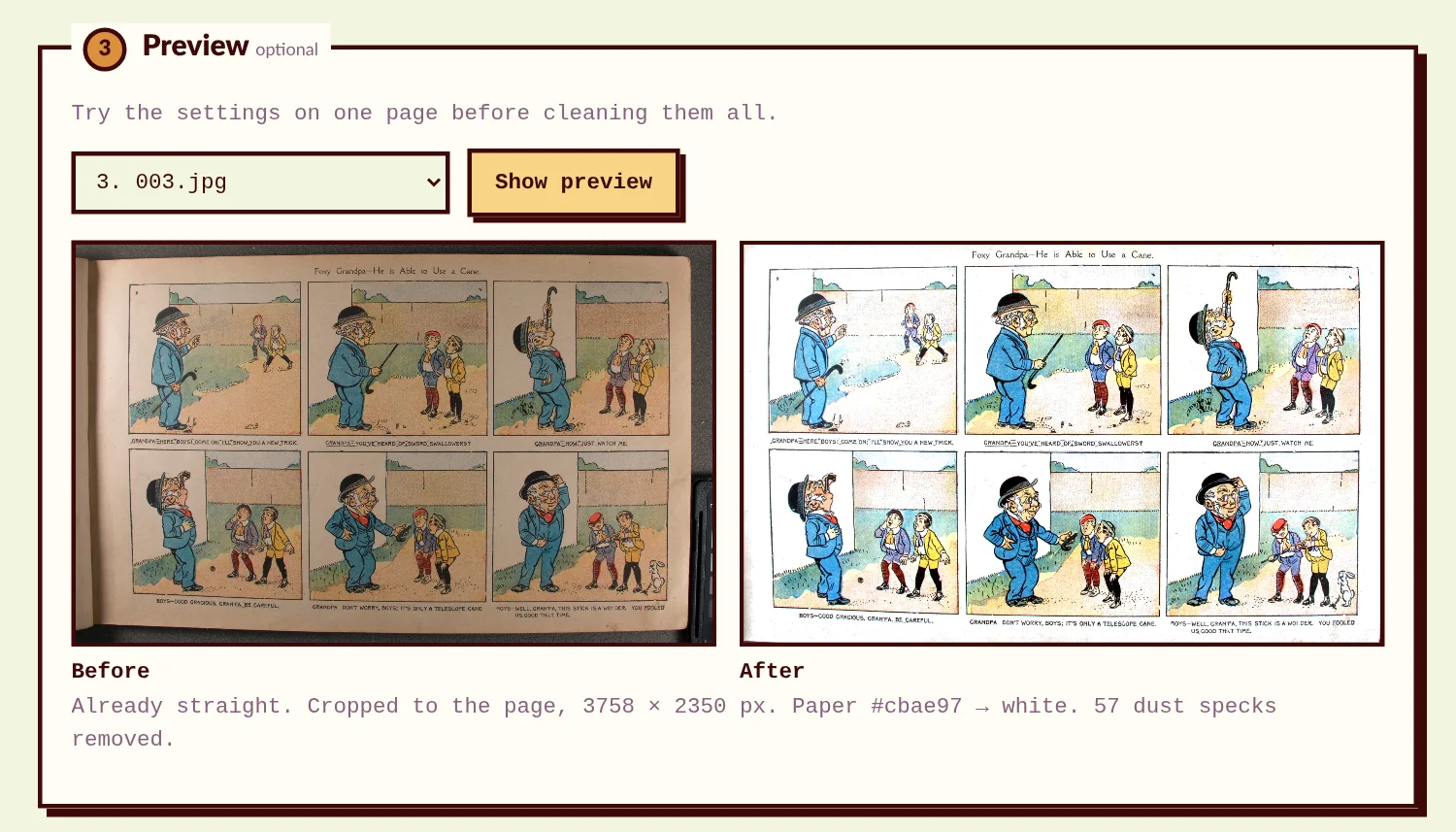
Pick a page and click Show preview to see it before and after, with a note of what was done. It is the quickest way to try a setting before cleaning the whole issue.
Step 5: Choose the output and the comic's details
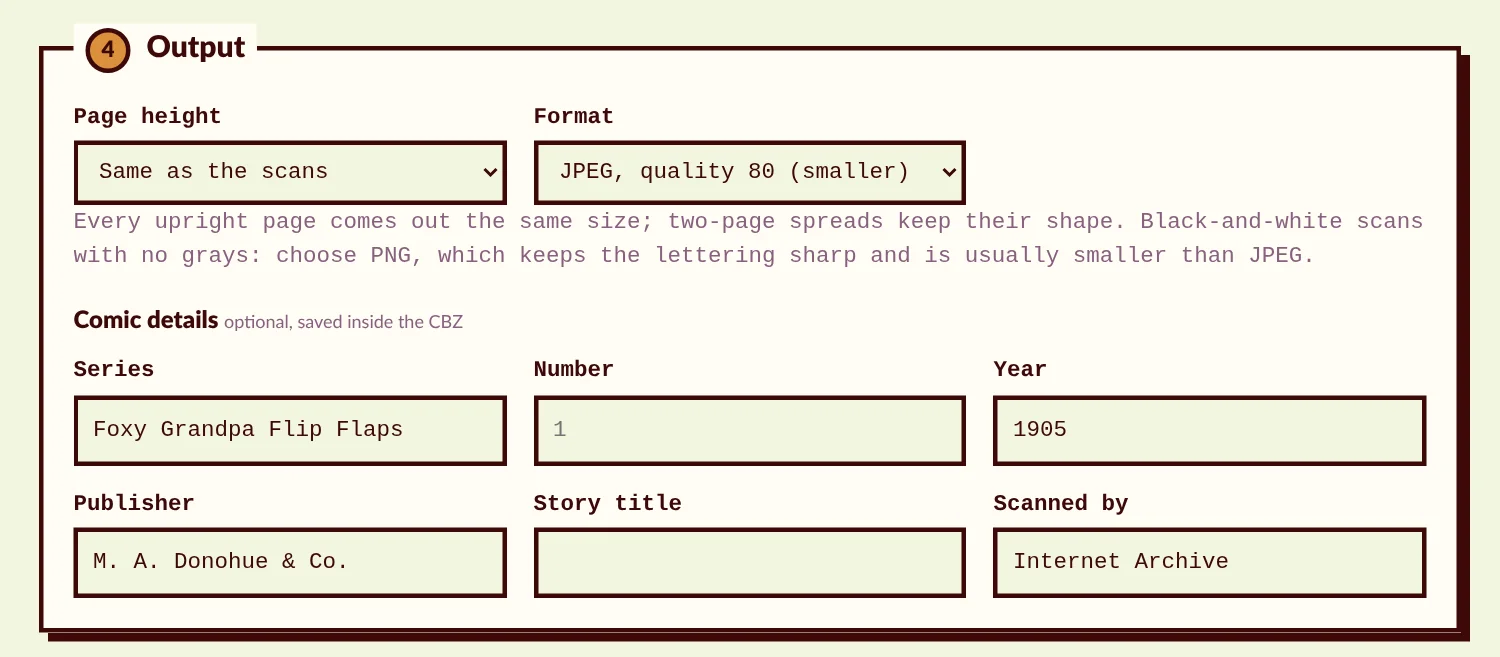
Under Output, choose the page height and the format. Every upright page comes out the same size; two-page spreads keep their shape. For color pages, JPEG, quality 80 keeps the file small without visible loss, so we chose it for this example. For black-and-white scans with no grays, choose PNG.
The comic details are optional. They go into a ComicInfo.xml file inside the CBZ, which comic readers and libraries use, and they name the file.
Step 6: Clean all pages and save the CBZ
Click Clean all pages. The 8 pages of this example took 17 seconds. Then click the download button to save the CBZ.
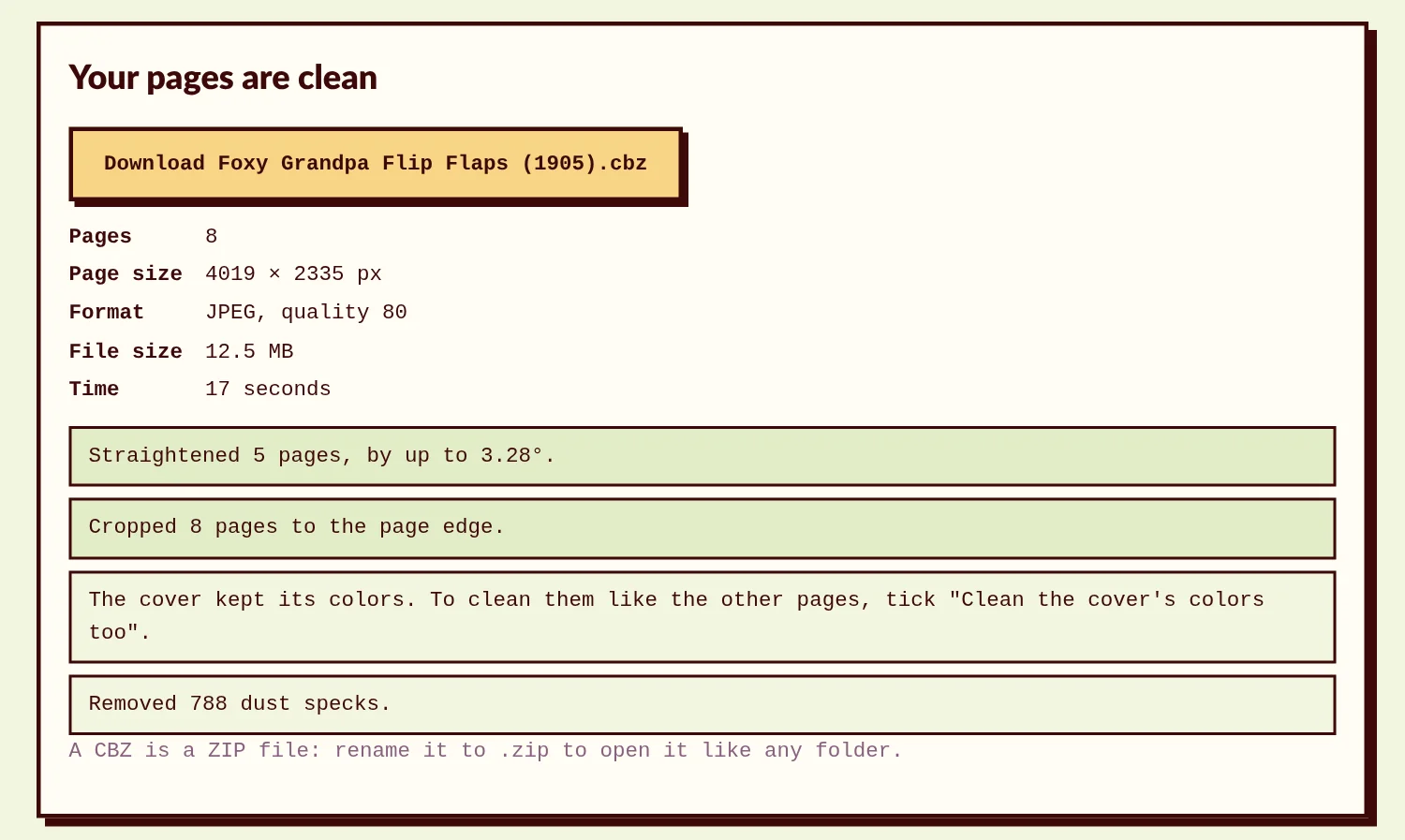
Read the report before you share the comic. Here it says that 5 pages were straightened, all 8 were cropped, the cover kept its colors and 788 dust specks were removed. When the cleaner leaves a page alone, for example a scan that was already cropped, the report says which page and why.
Step 7: Check the result in a reader
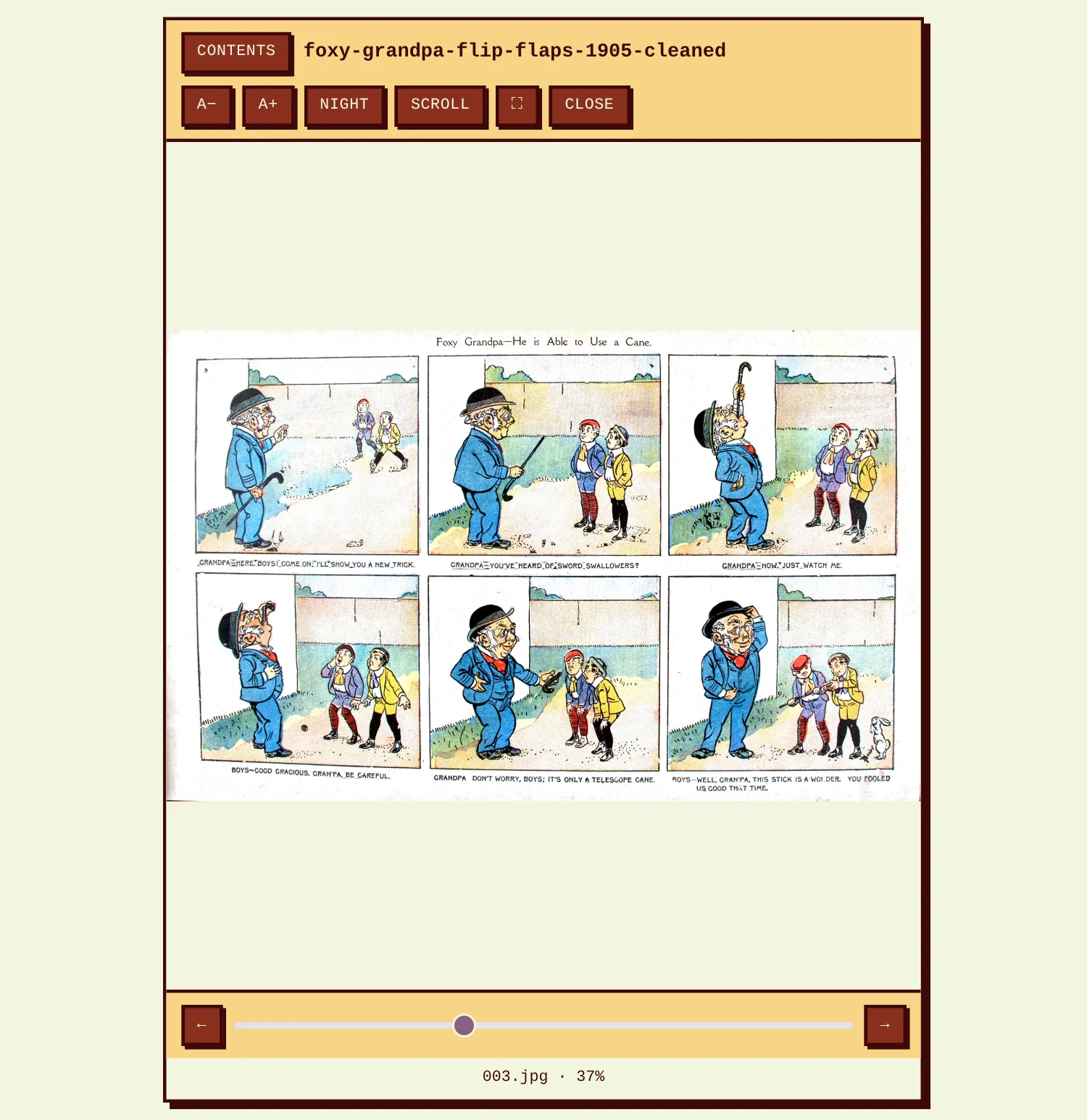
Open the CBZ in your comic reader, or in our free online reader, which opens CBZ files in the browser without uploading them. Page through it once: it is the best way to spot a page that needs another try.
Example 1: Foxy Grandpa Flip Flaps (1905)
Photos of a book lying open on a dark table: every page is a little crooked, the facing page and the spine show on one side, and the paper is yellow. This is the example of the steps above, with the default settings and JPEG at quality 80.
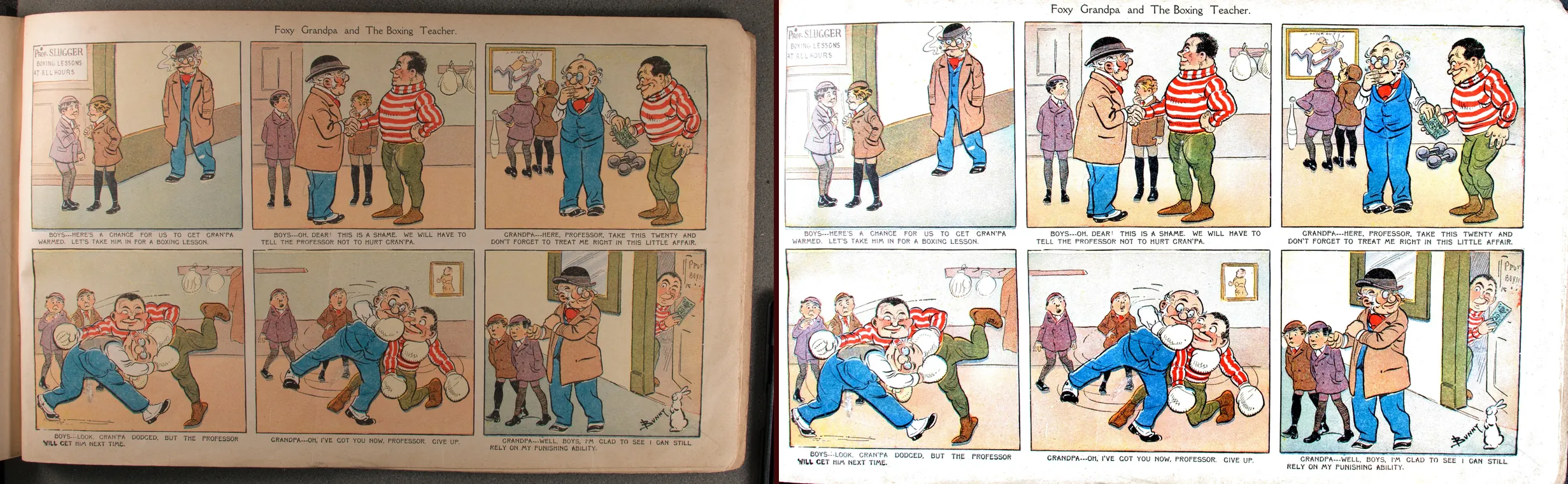
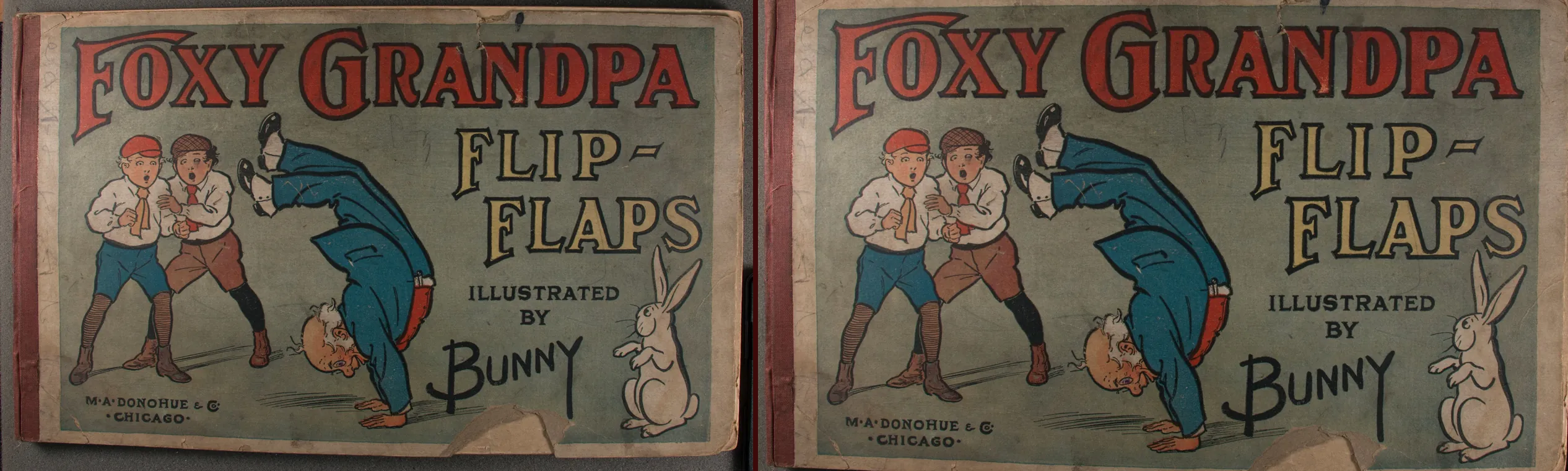
What to look at: the colors lose the yellow of the old paper without fading, and the lettering stays sharp. One thing to know: the last page, a blank endpaper, was turned 3.3° by the edge of the book, because with nothing printed on it the edge is all there is to line up.
- Download the scans (8 pages, JPEG, ZIP, 14.5 MB)
- Download the cleaned comic (CBZ, 12.5 MB)
- Source: Foxy Grandpa Flip Flaps on Internet Archive, marked public domain. We took 8 of its 26 pages.
Example 2: Bringing Up Father (1919)
Flatbed scans with the white scanner lid showing above and below each page, on paper that has turned brown. Black-and-white art with a few colors. Default settings and JPEG at quality 90. The 8 pages took 13 seconds: 3 were straightened, by up to 1.03°, all 8 were cropped and 319 dust specks were removed.
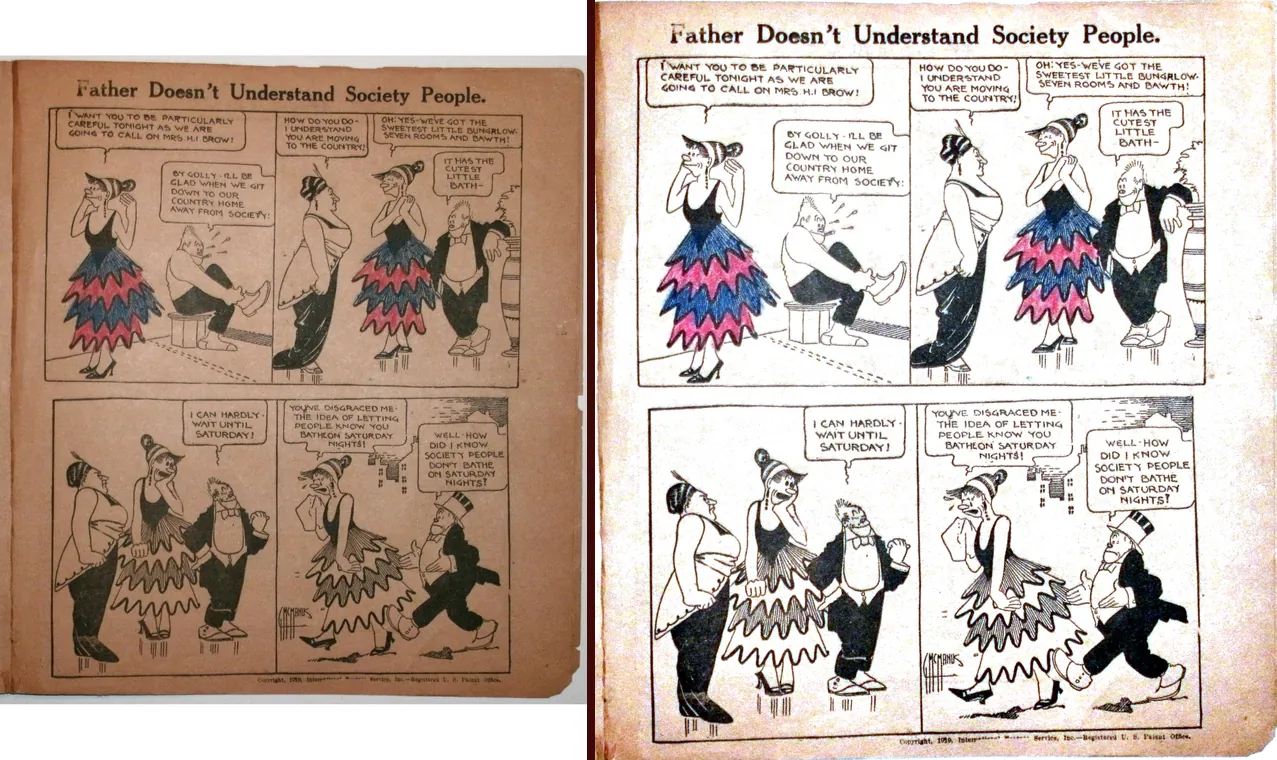
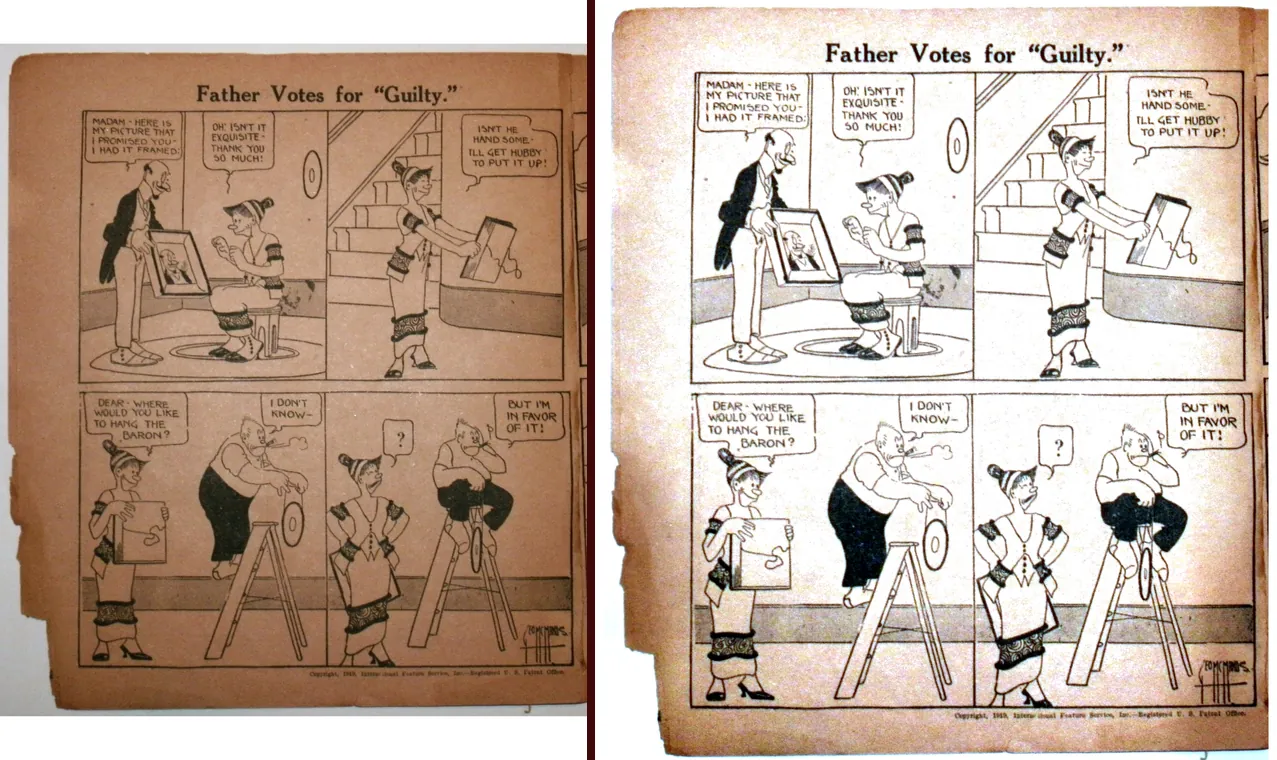
What to look at: the art and the lettering come out black on white, and the brown is gone where the paper was evenly browned. On pages that brown much more at the edges, like page 2, the margins keep some of their color. For those, choose Trim the edges: More or A lot to cut the darkest part off, or Even aged tone to give every page the same old-paper look.
- Download the scans (8 pages, JPEG, ZIP, 8.9 MB)
- Download the cleaned comic (CBZ, 11.5 MB)
- Source: Bringing Up Father, Series 1 on Internet Archive, marked public domain. We took 8 of its 52 pages, scanned at 600 ppi, and reduced them to 300 ppi to keep the download small.
Try it yourself: download the scans, clean them with your copy of Comic Scan Cleaner and the same settings, and compare. The cleaner makes the same decisions every time.
Clean your own scans
Comic Scan Cleaner straightens, crops and whitens every page of an issue at once, removes the dust and saves a CBZ. It works offline, and it never redraws your art. US$12, one payment.
See Comic Scan CleanerWhen a page needs something else
| The page | The setting |
|---|---|
| Torn or dark edges | Trim the edges: More or A lot |
| You like the old-paper look | Paper: Even aged tone, or Leave as scanned |
| Whitening looks too strong | Strength: Three quarters or Half |
| The cover should be cleaned too | Tick "Clean the cover's colors too" |
| Black-and-white scans with no grays | Format: PNG, for sharper lettering and usually a smaller file |
| The CBZ is too large | Format: JPEG, quality 80, or a smaller page height |
For the best results when you scan: leave a little of the scanner lid showing around the page, keep pages within 5° of straight, and scan two-page spreads whole when they fit on the glass. A sheet of black paper behind the page works as well as the lid, and hides the print showing through from the other side.
Frequently asked questions
Does Comic Scan Cleaner use AI?
No. It measures each page (its angle, its edges, the color of the paper and the ink) and corrects it with classic image processing. Nothing is invented or redrawn.
Are my scans uploaded anywhere?
No. The cleaner is one HTML file that runs in your browser and works offline. Your scans never leave your computer.
Can I clean scans that are in a PDF?
Yes, once you take the images out of the PDF, for example with pdfimages or your PDF editor's export. The cleaner works with JPEG, PNG and WebP images.
Can I read the cleaned comic on a Kindle or Kobo?
Most comic readers open CBZ files. For an e-reader that only takes EPUB, turn the CBZ into an EPUB with our free CBZ to EPUB converter.
Can I share the comics I clean?
Yes, as far as the rights to the comics allow. Public-domain comics, like the two in this tutorial, can be shared freely.